
Setting Up a Product/Brand/Category-Based Punch Card
Overview
This Digital Punchcard set up allows you to configure a promotion based on products bought, making it more exciting than ever for your customers to shop.
Step 1: Set Up Audiences
In your AlpineIQ dashboard, you'll create a separate audience for each punch in your punchcard, including two additional for the eligible and redeemed customer segments.
For example, if you're running a 5-punch card, you'll create 7 distinct audiences.
Begin with your ‘Eligible’ audience, this is all customers you would like eligible for the punch card promotion. See the example below for sample parameters, where every purchase of a relevant product earns a punch, and the date range is specified for the length on the promotion.
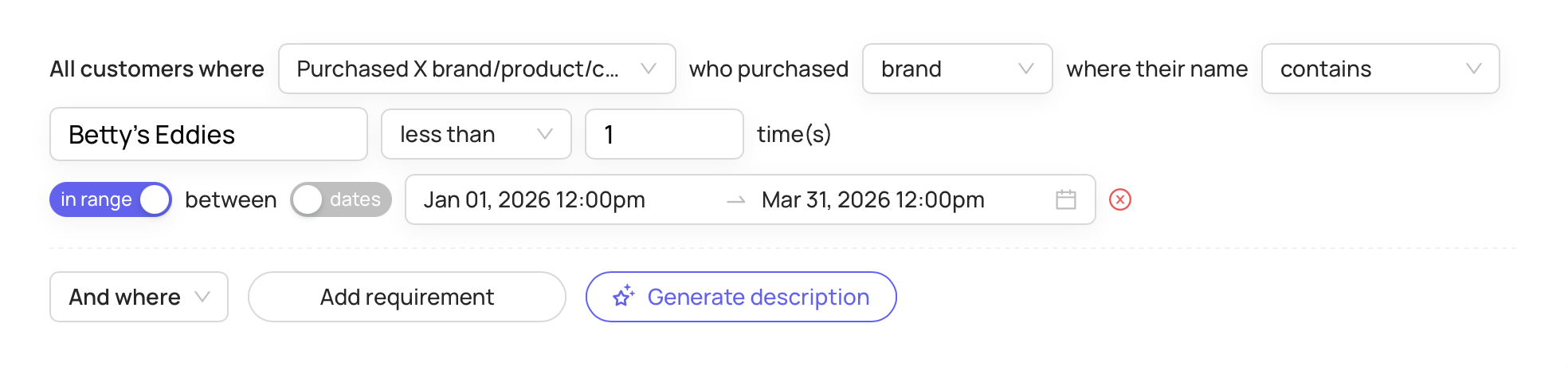
Duplicate this audience and change the ‘less than’ to ‘exactly’. This will be your Punch #1 audience.
Continue this pattern until you reach the desired amount of punches in your promotion.
Finally, create a ‘Redeemed’ audience that contains customers who have used the discount associated with the punch card. This will ensure that once the customers use the discount associated with the promotion, the punch card will disappear from the rewards wallet.

Still need help?
Our support team is here for you.