
POSaBIT Integration Setup Guide
Follow these steps to get your POSaBIT menu connected to your DopeTech mobile app, kiosk or website. We’ve kept it simple, you’ll be done in 15 minutes.
1. Log in to POSaBIT
Start by signing into your POSaBIT account.
2. Follow the Integrator Guide
Follow this guide to “**Adding an Integrator to a Venue”**, select DopeTech and select all the checkboxes.
Copy and save the Integrator Token to send to us later.
3. Create a Menu Feed
Go to your Dashboard, then Inventory → Menu Feeds.
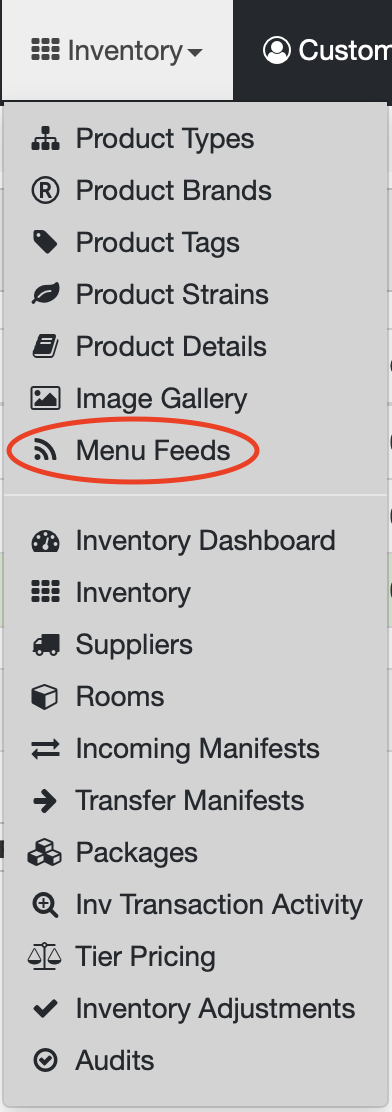
Click the blue Create New Menu Feed button.

On the next screen, POSaBIT will prompt you to name the Menu Feed. Name it DopeTech for easy reference.
Then, select Save.
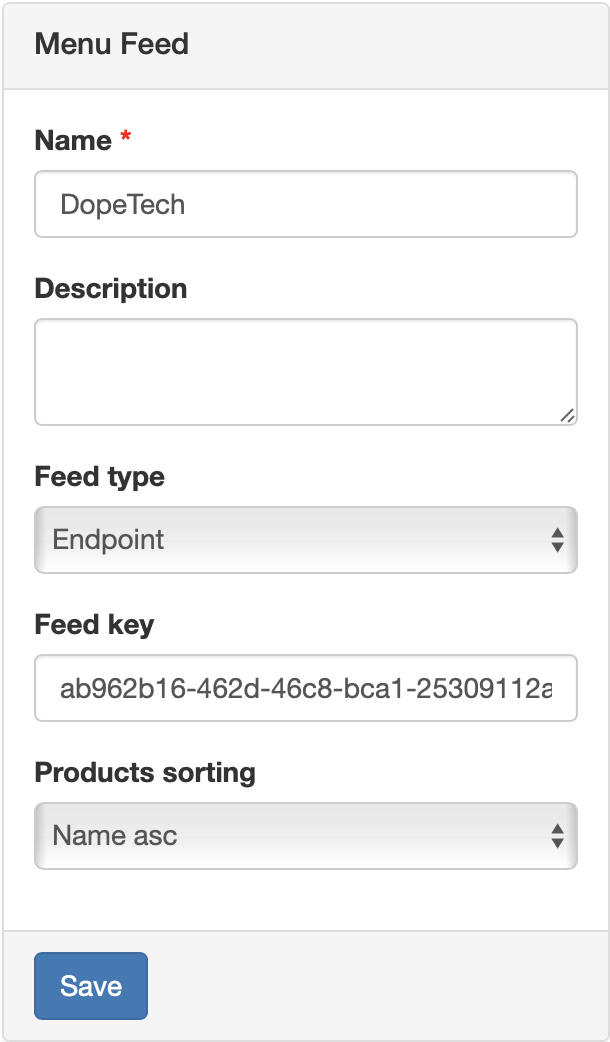
4. Create Categories Within Menu Feed
This part is important. To keep your app menu clean, you’ll want products with multiple sizes or variants to show up on the same product card.
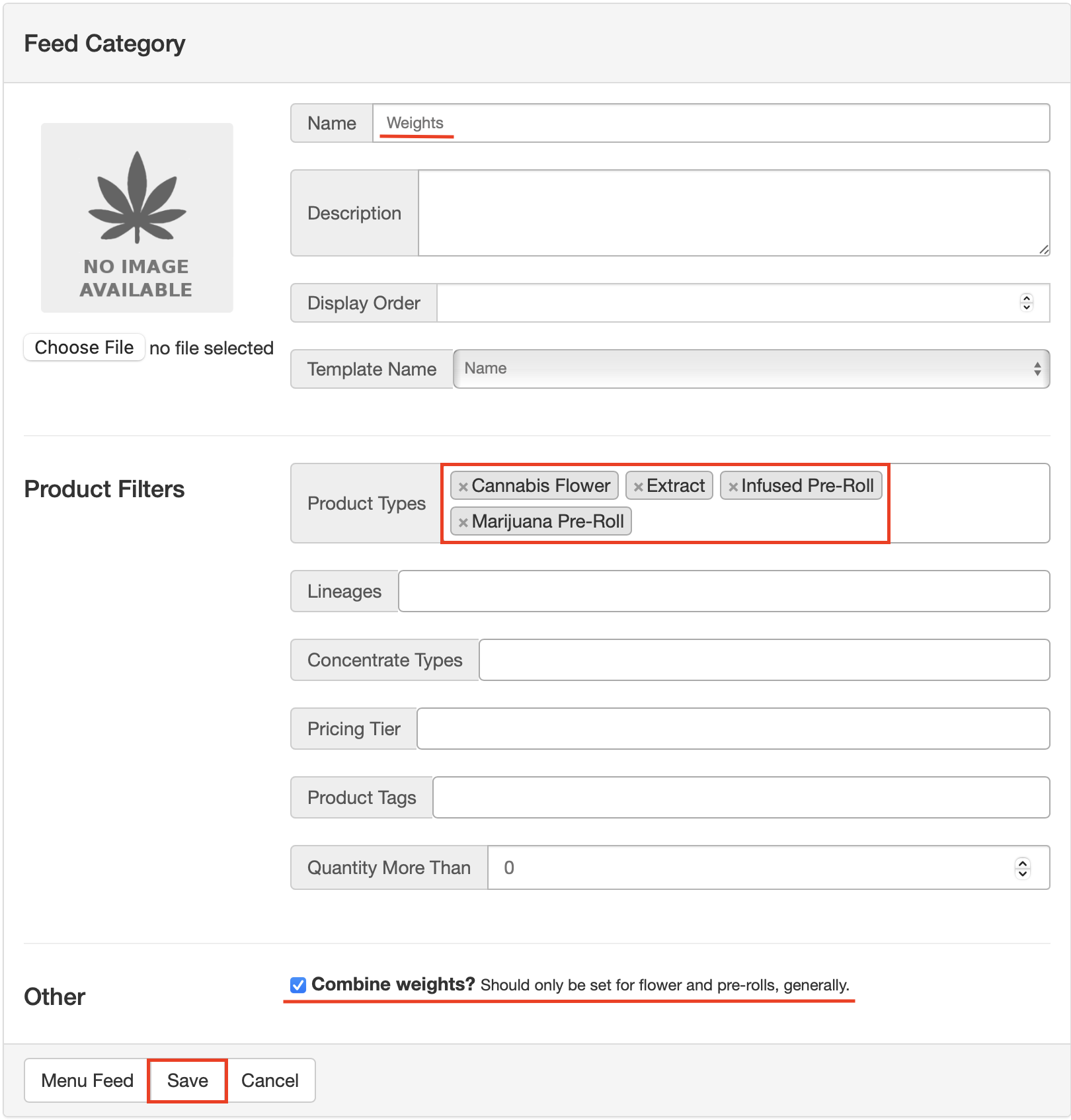
On the Menu Feed page you just created, select New Category.

Name the Feed Category “Weights” for easy reference.
Then, add all Product Types you would like to be grouped together. Most dispensaries add their Flower, Concentrates, and Pre-Rolls.
Then, check the ‘Combine Weights?’ checkbox.
Once finished, select Save.
Note: This will not group together unrelated products. This category ensures that if you have multiple weights of the same product (1g, 3.5g, and 14g of the same flower product, or single and multipacks of the same pre-roll, for example), they will be grouped together on a single product card in the app for ease of shopping.
Now select New Category, once again.

This menu feed will be for all remaining inventory you would like to show in the app.
Name it ‘Other’ for reference.
Then, add all remaining Product Types you would like available to customers in the app.
Do not check the ‘Combine Weights?’ checkbox.
Select Save once complete.
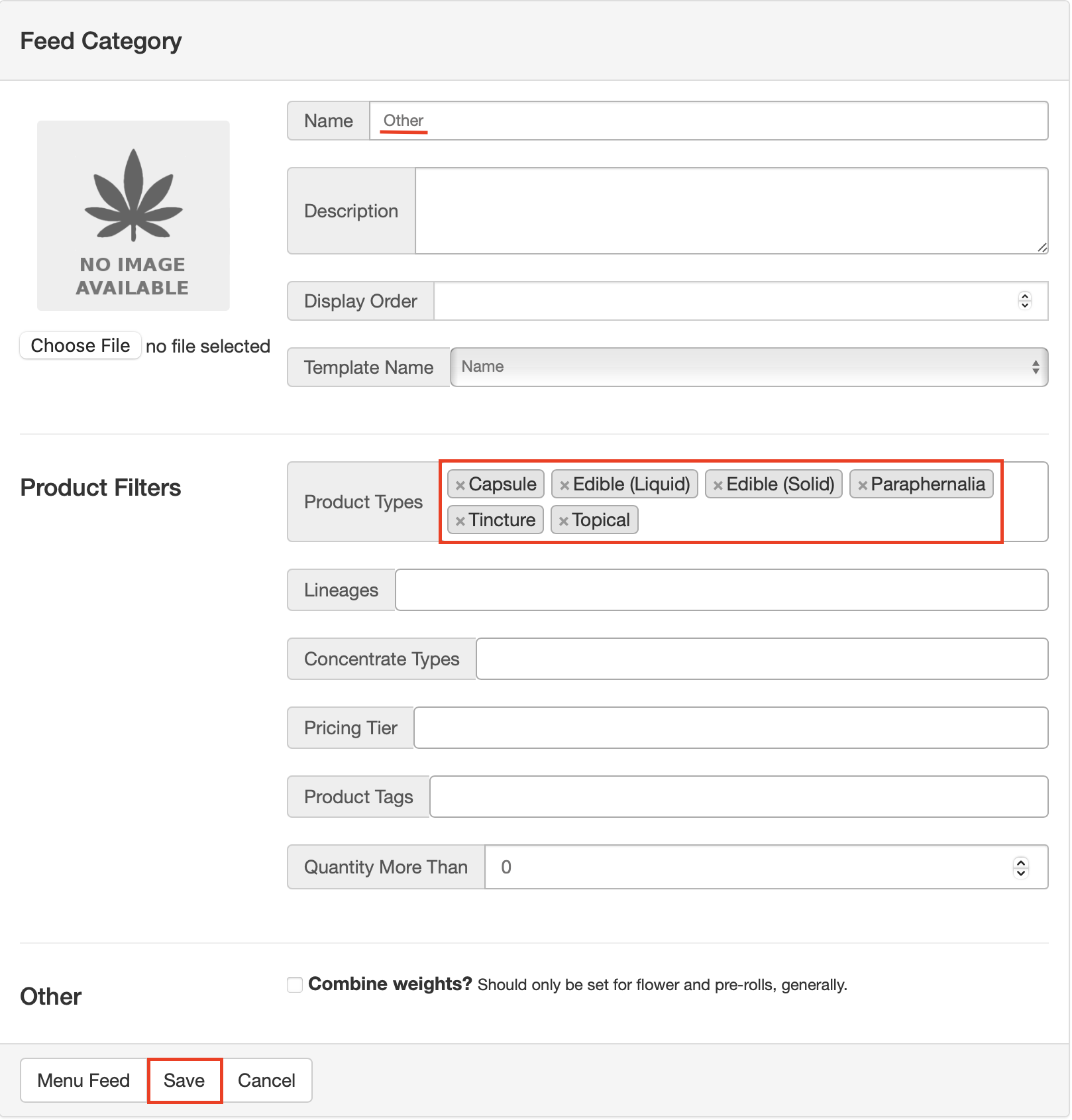
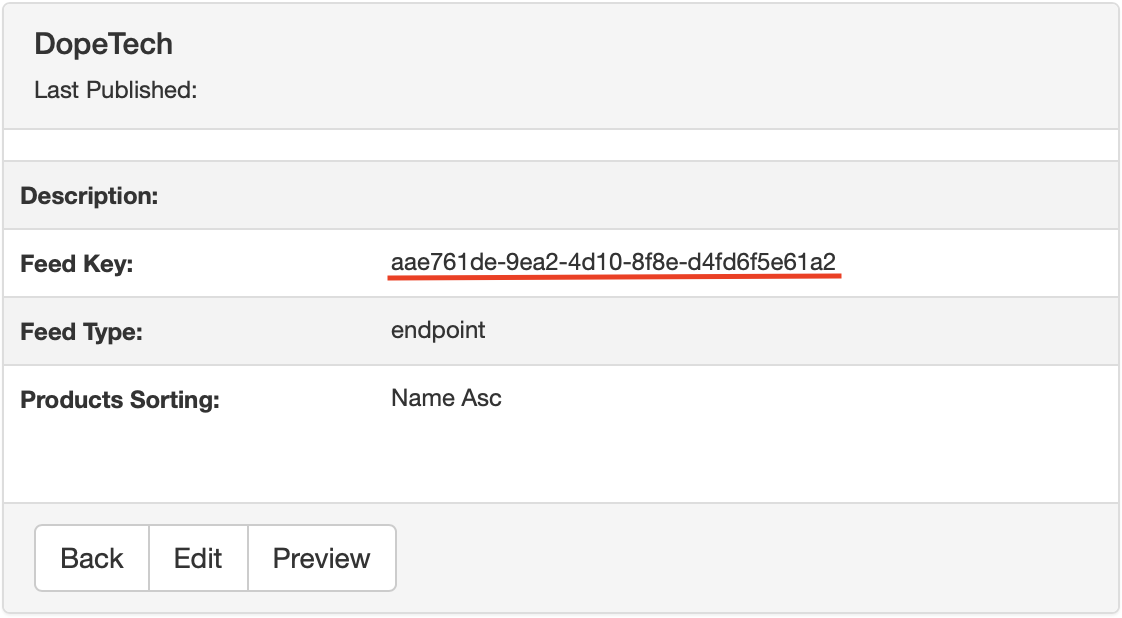
Once finished, copy the Feed Key shown in the example below, noting the store association (if you have multiple locations).
5. Repeat Steps 3 and 4 for Each Additional Store
You will need to create separate Menu Feeds for each location you have. Repeat the same steps as above for each store, copying the Feed Key to send to us.
6. Send Us Your Integrator Token + Feed ID(s) Securely
We will need the 1 (one) Integrator Token you created, as well as Feed IDs for each location. Please note which Feed ID is associated with the given dispensary location for clarity.
For security, avoid sending your API Key and Feed IDs over plain email. A safe way to send it:
- Use PrivNote for a one-time, self-destructing link: https://privnote.com
Send the link to your DopeTech Onboarding Coordinator for setup completion. Once we have your Integrator Key and Feed ID, we’ll finish the connection and make sure your menu is live in the app.
Don’t hesitate to reach out to your Onboarding Coordinator to clarify any of these steps.
Still need help?
Our support team is here for you.