
Create your Apple Developer Account
- Obtain your D-U-N-S Number
⚠️ Click on the link above to read more about what a DUNS number is and why it’s important. _If you already have a number for your business, go ahead and skip this step and proceed to Step 2_
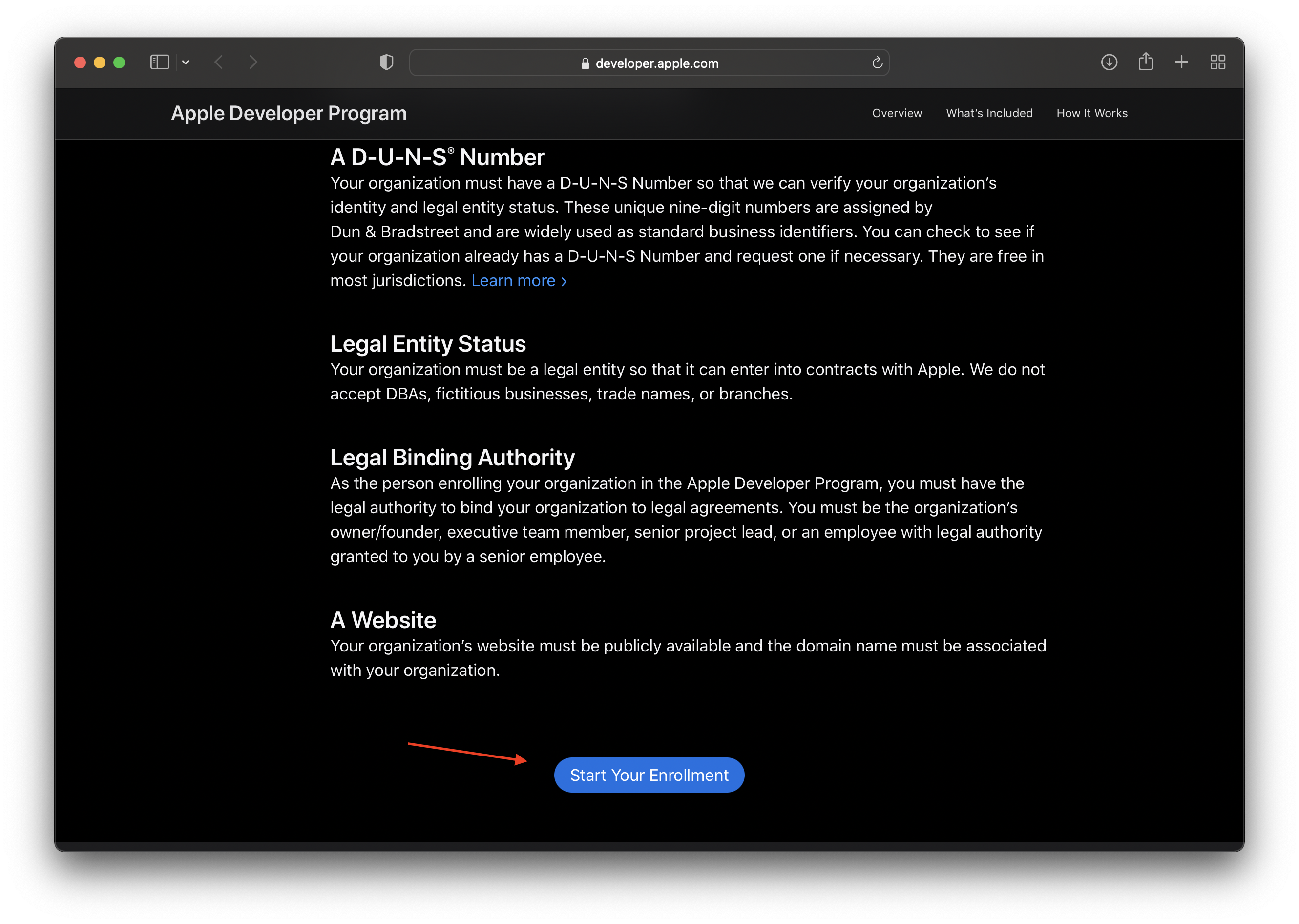
- Go to https://developer.apple.com/programs/enroll/ and read through each section thoroughly to understand the importance and what you’ll need
- Click on the “Start your Enrollment” button at the bottom
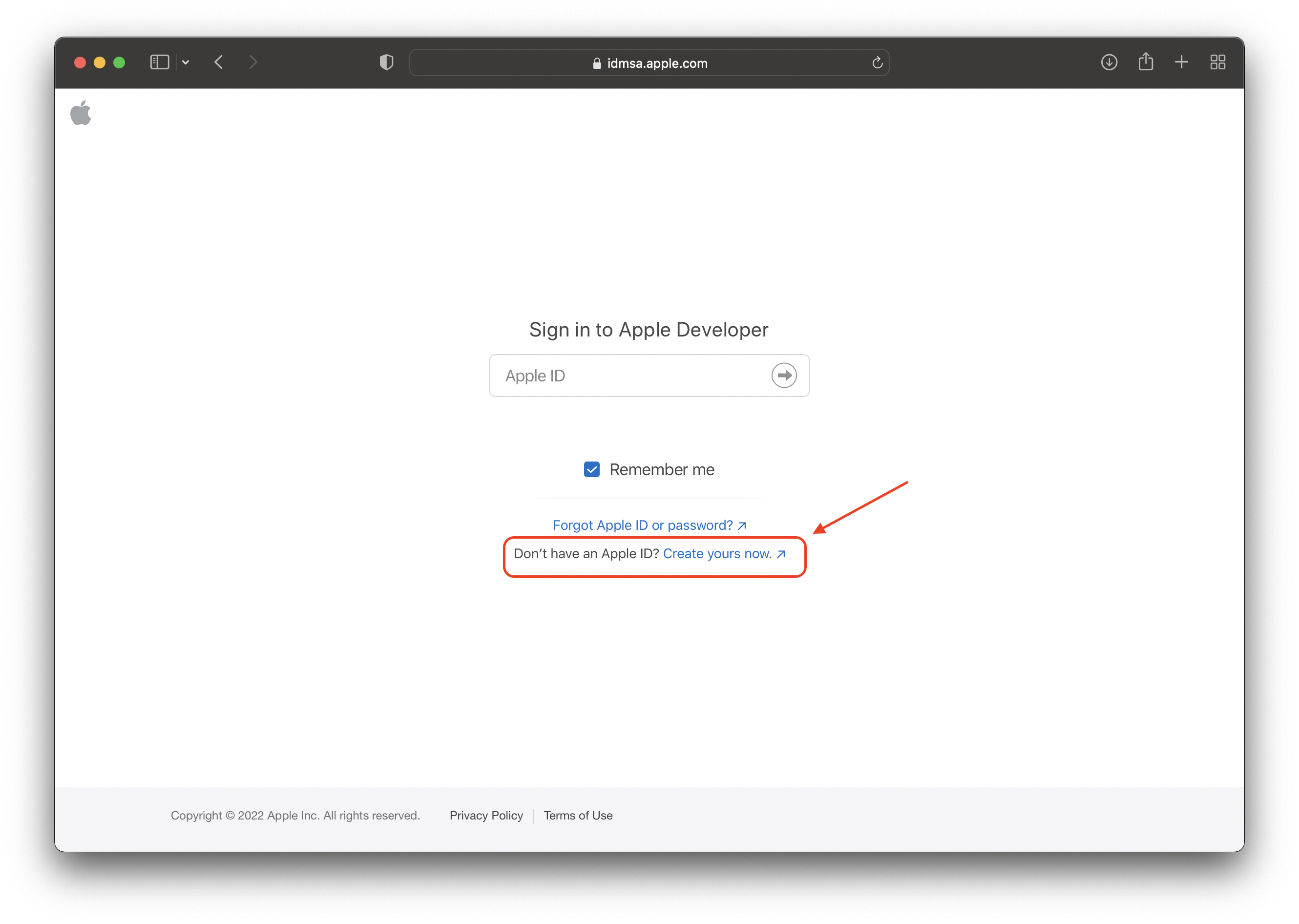
- Click on “Create Your’s Now” to create a new Apple Development Account
⚠️ EVEN IF you already have a previous or current Apple Developer Account, go ahead and create a new one that you will feel comfortable having future employees/managers of yours log-in to.
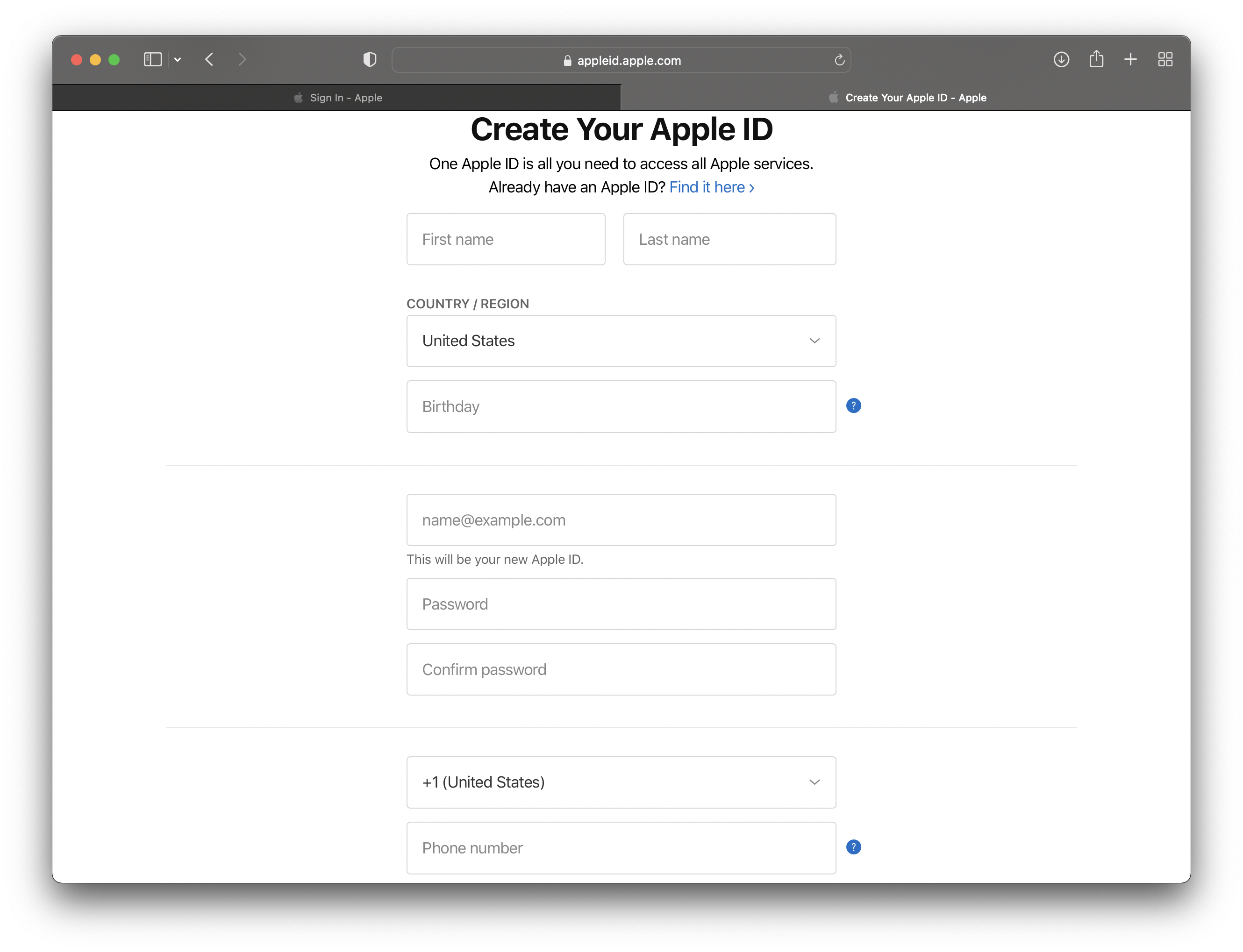
- Fill-In the “Create Your Apple ID” Section with the information of your designated project manager that you want in charge of the app (fill in your information if that’s you)
⚠️ Make sure to use your company email and password you’ll remember and that you feel comfortable sharing in the future with employees of your choice or us if we need it
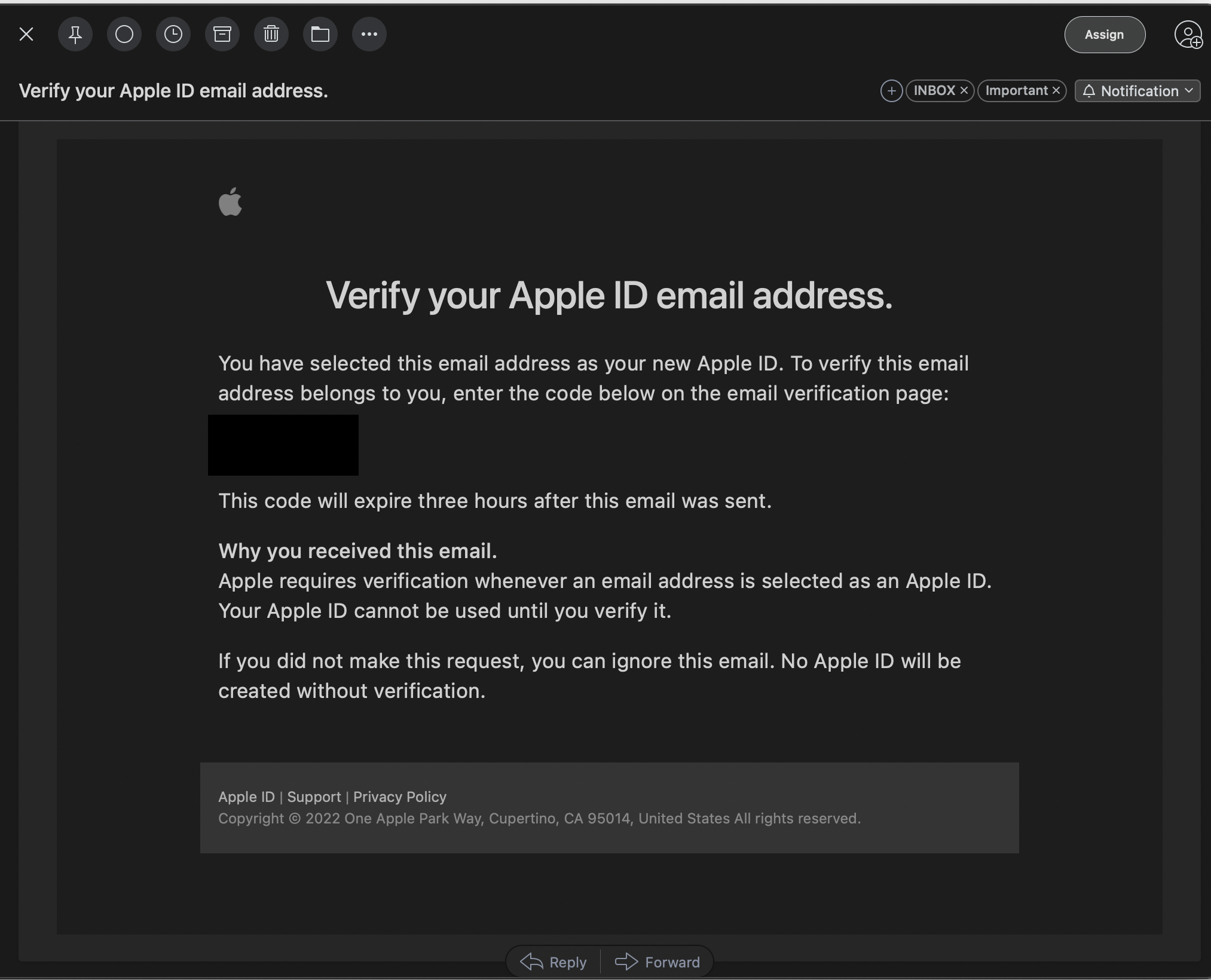
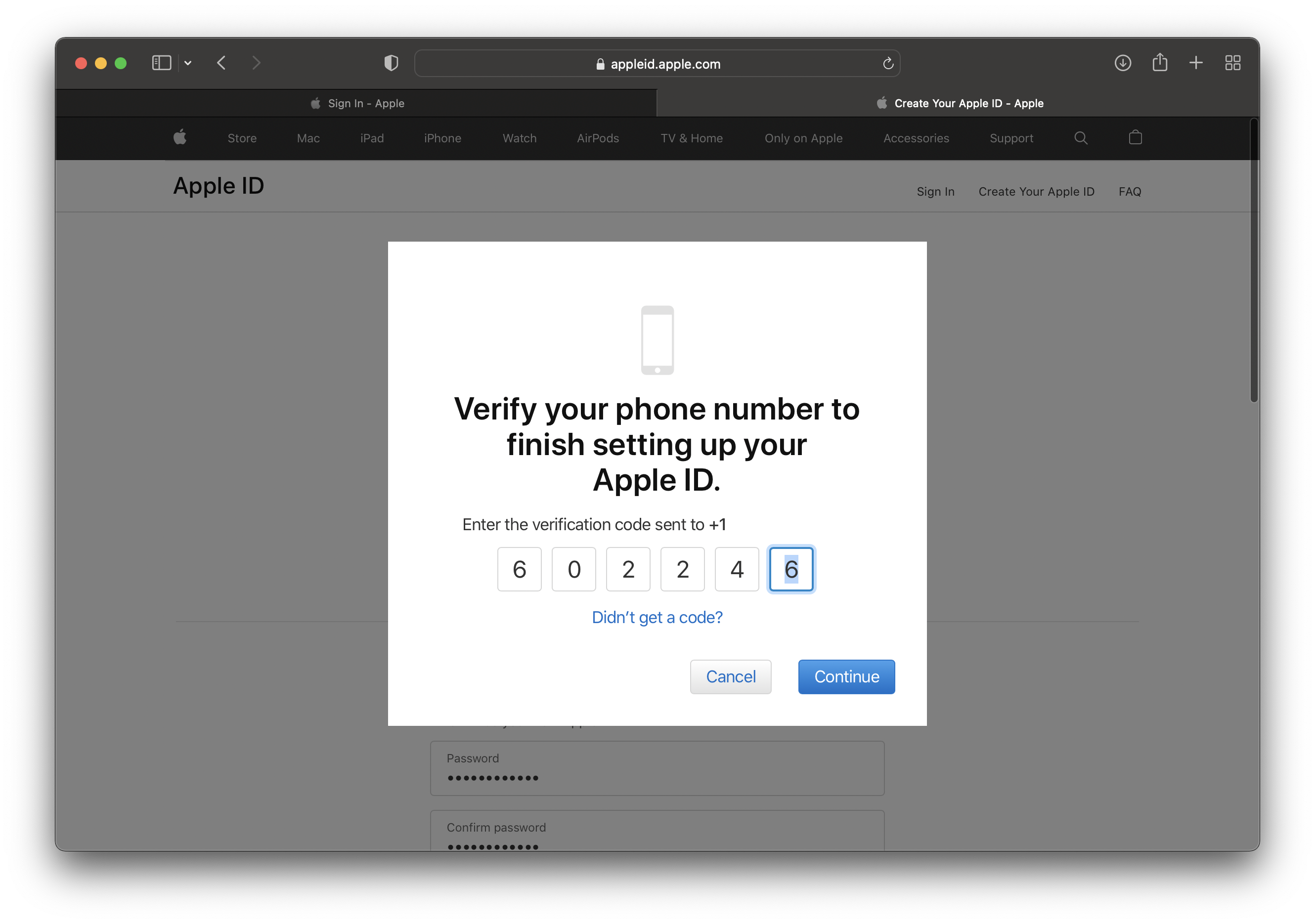
- Confirm your email address through the account that you typed into the above step and type in the code online.
- Repeat confirmation step with phone number that you entered above
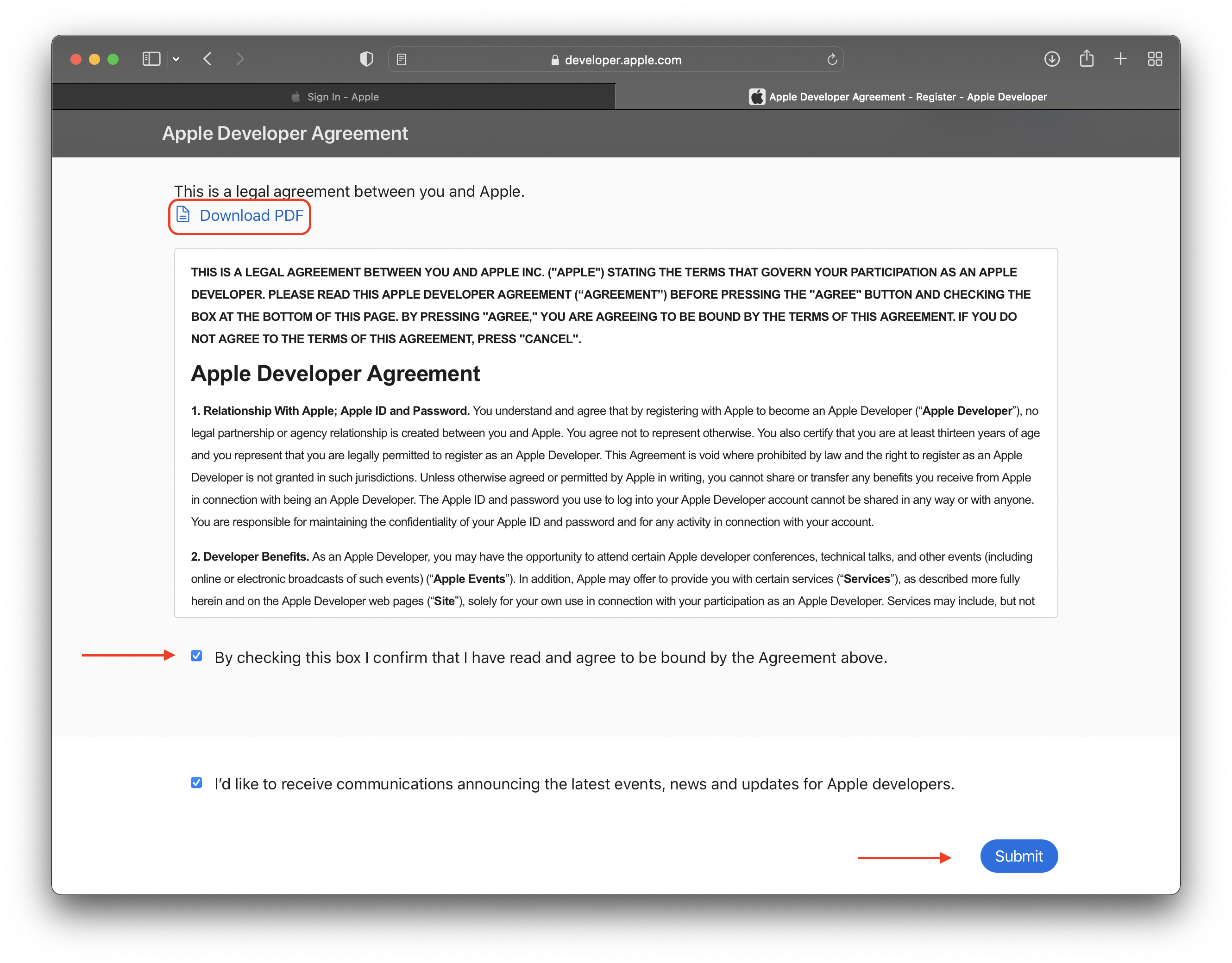
- Feel free to read the Terms and Agreements from Apple, and download it all as a PDF at the top to refer back to in the future. Then check the boxes and submit.
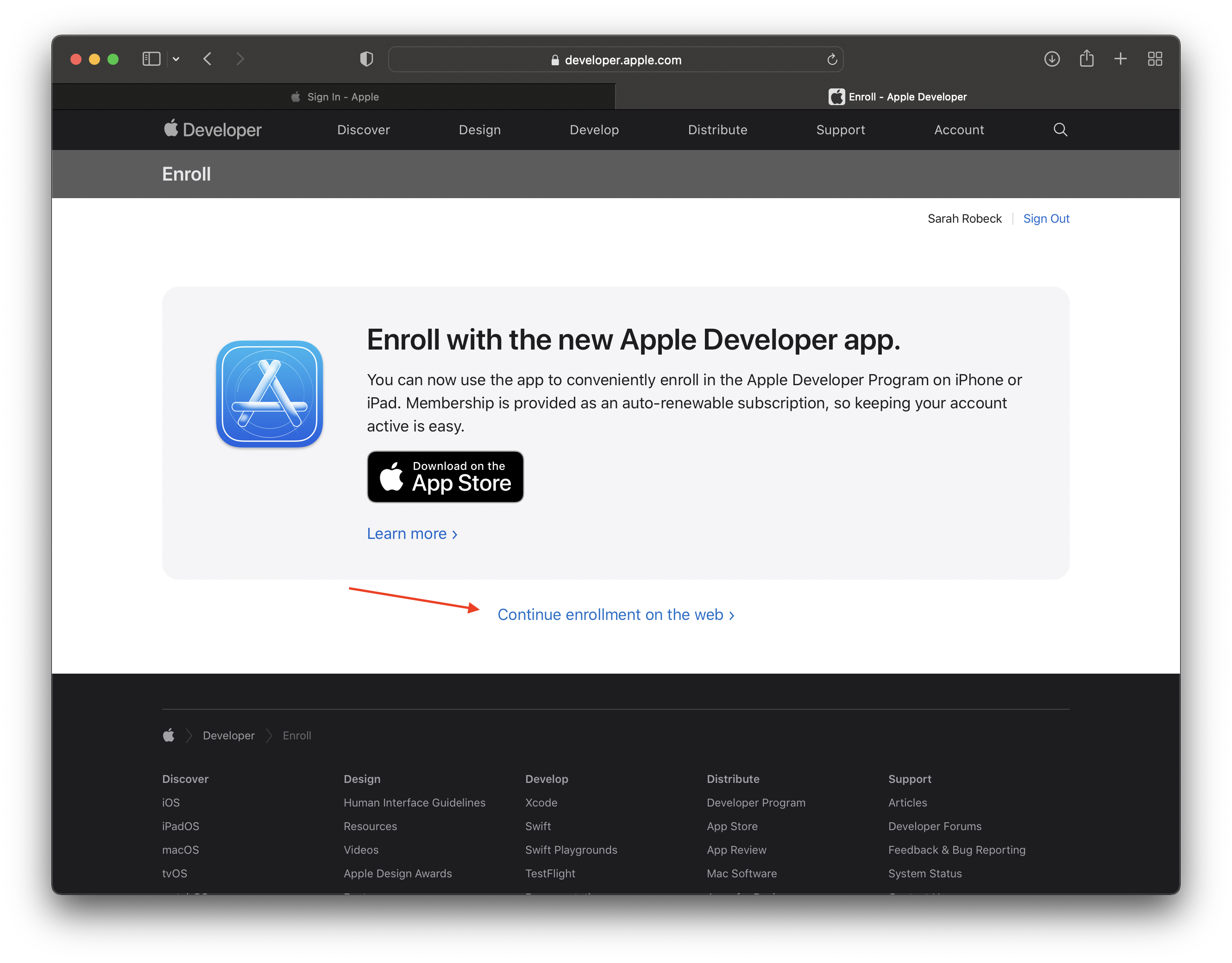
- This guide is based around a web-only enrollment process, so ignore this page and click on the “Continue Enrollment On Web” button below.
⚠️ Some people may or may not see this step, it is optional and isn’t needed either way. So go ahead and skip it
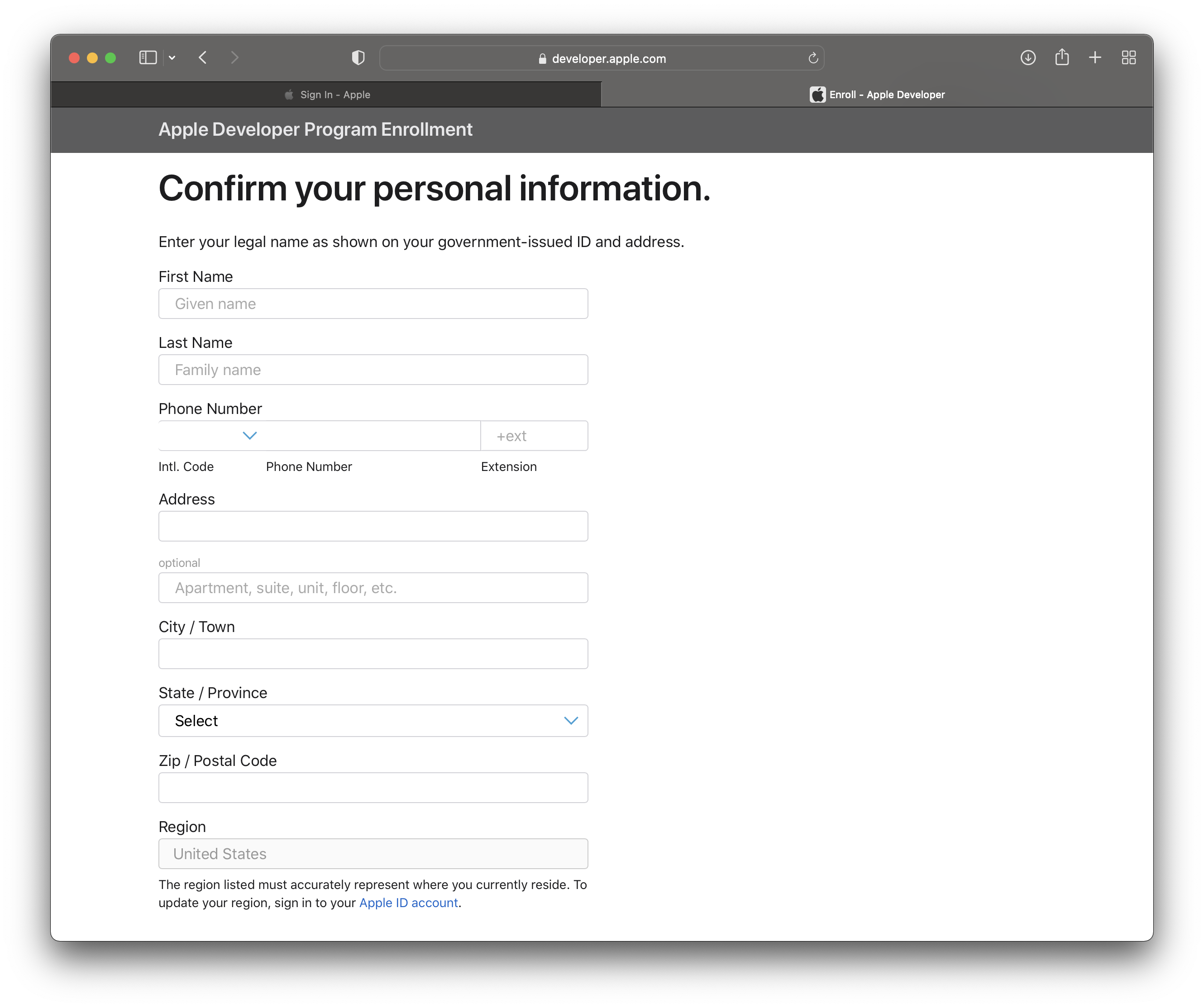
- Enter in and confirm all of your personal information so they can have a liable source to contact if they need it. (Do not enter in your company name in this section, it needs to be your personal information, otherwise it will delay the approval process)
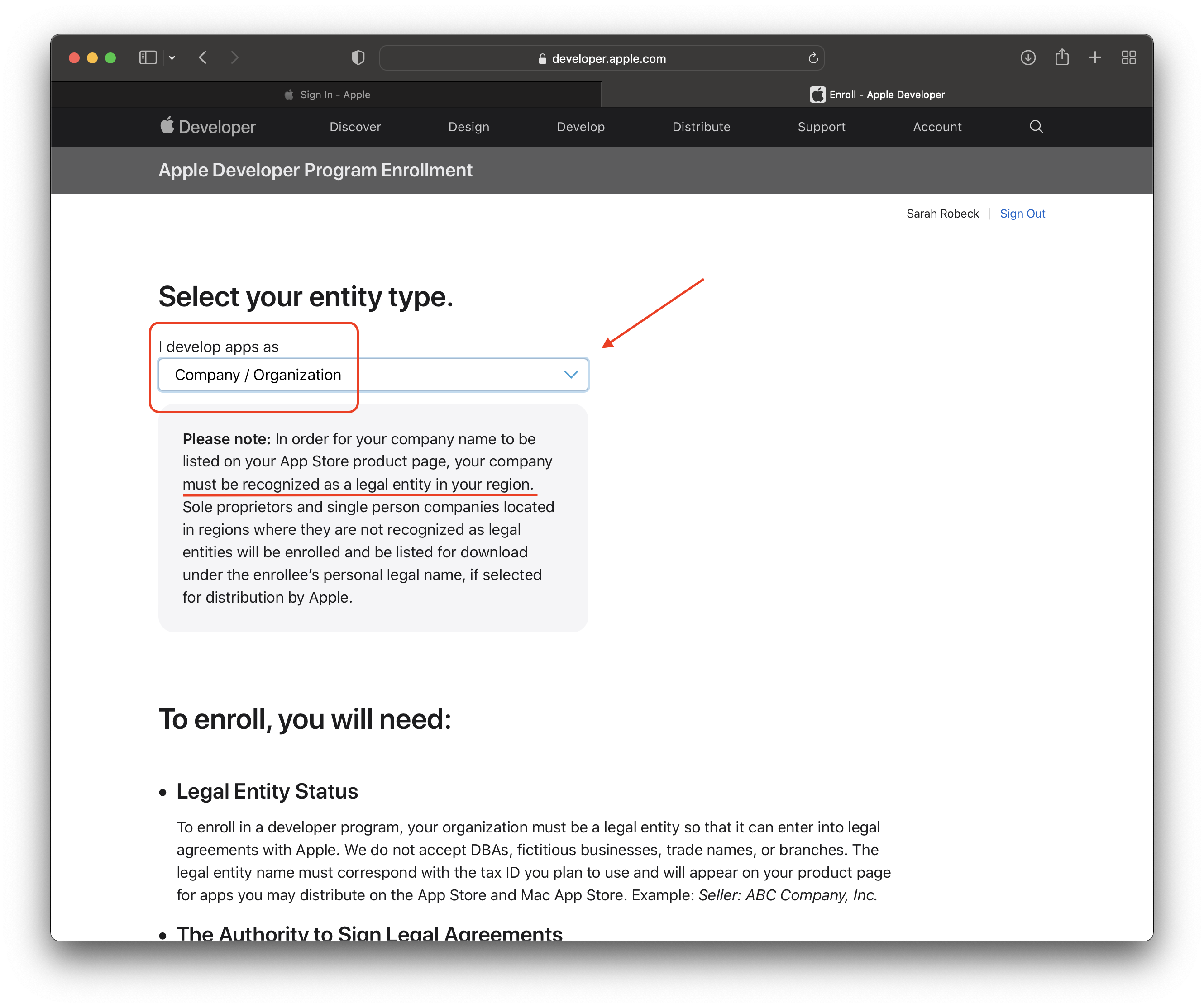
- Select Company/Organization as your “entity type”
⚠️ Please make sure to read all of the necessary information below before you go onto the next step so there is no confusion further on.
- List your legal company name and then enter your DUNS number mentioned in ‘Step 1’
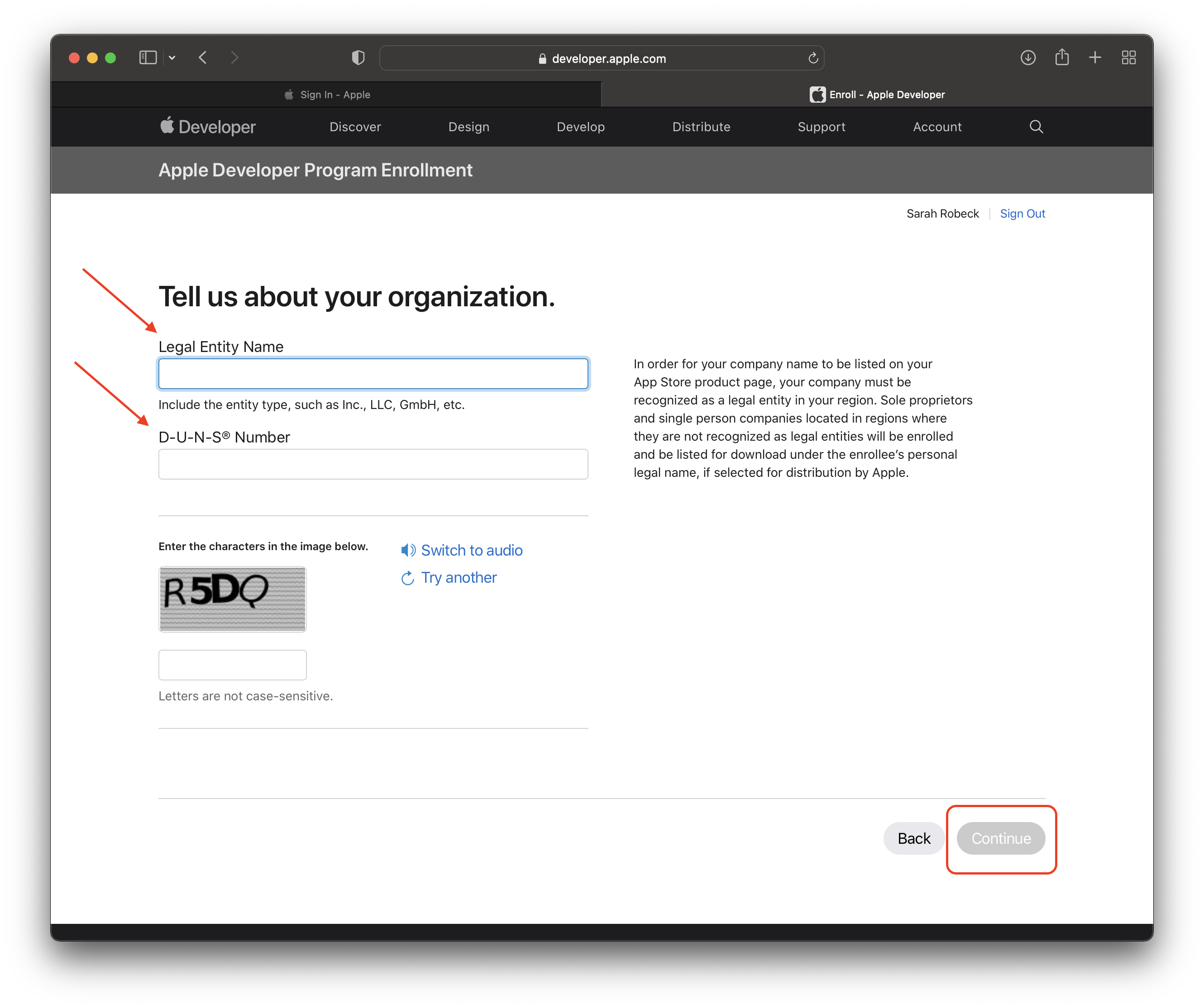
- Follow the remaining steps afterwards if it asks for more information, otherwise submit it and then wait for an approval email!
Still need help?
Our support team is here for you.